
Wallet Settings
Access all wallet settings via the /settings widget.
This widget allows you to navigate and configure different wallet options easily.
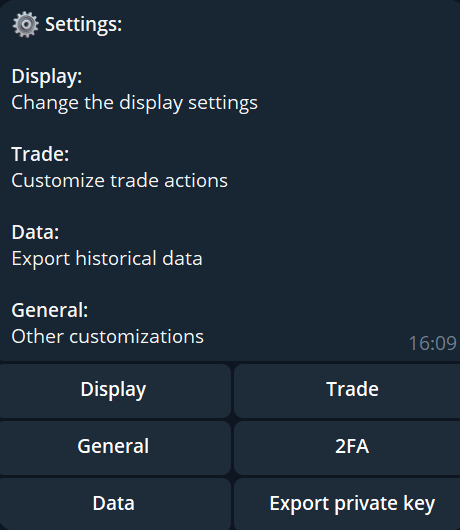
Display Settings
- Log Trades: Toggle the option to display a log message whenever a trade is executed.
- Hide Small Balances: Hide small balances in your wallet overview to reduce clutter.
Actions:
- Disable Log Trades
- Hide Small Balances
Trade Settings
This section allows you to preconfigure the buttons in the Trade Widget for faster trading.
- Buy Buttons Config: Set the notional amount for the left and right buy buttons.
- Sell Buttons Config: Set the percentage for the left and right sell buttons.
- Max Slippage Config: Adjust the maximum slippage allowed for trades.
Actions:
- Adjust individual buy, sell, or slippage values as needed.
General Settings
- Tip Amount Config: Set the default tip amount you can send using the recipient’s Telegram handle in the Hypurr Fun Chat by typing /tip @username.
- Auto-Bridge: Enable or disable the automatic bridging of balances from Arbitrum to Hyperliquid.
Actions:
- Disable Tipping: Turn off tipping functionality.
- Disable Auto-Bridge: Prevent automatic bridging if you prefer manual control.
Data Settings
Export historical data from the default wallet:
- This allows you to download a CSV file containing your trade history for record-keeping or analysis.
- Note: The data corresponds to the wallet currently set as the default.
Two-Factor Authentication (2FA)
To enable Two-Factor Authentication (2FA) for transfers and withdrawals:
- Press the "2FA" button, then select "Setup 2FA".
- The bot will provide a QR code.
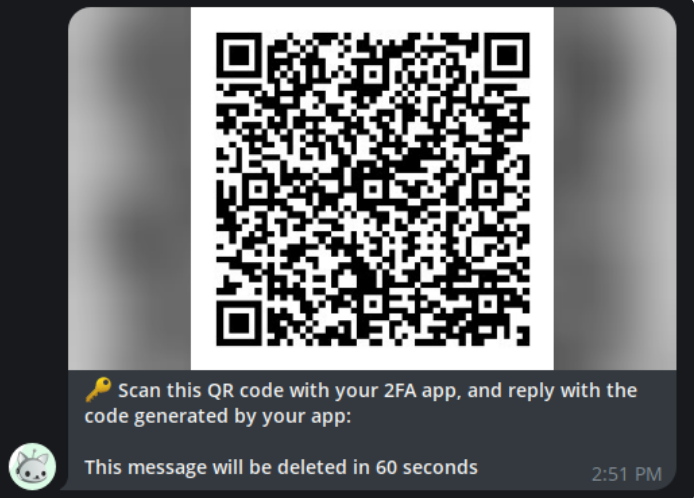
- Scan the QR code using your preferred 2FA app (e.g., Google Authenticator, Authy).
- After scanning, reply in the chat with the current code from your 2FA app.
- If the code is correct, 2FA will be enabled.
Note: Keep the QR code secure, as you’ll need your 2FA app to verify future withdrawals or transfers.